Automation options for network devices
There are various networking vendors out there (example Cisco, Juniper, F5, ...). Every vendor provides command line access to its device. The networking shell is usually something unique for a vendor and requires some time to master it. The most popular way to access the shell is to use SSH protocol although.
It is sad that many networking vendors doesn't supply any form of API for device configuration and management (only very few, example F5 iControl). Usually there is only command line shell or GUI.
From operational point of view it is a tedious job to try to automate your routine tasks. In practice, at the end you are going to be forced to write your own scripts and programs. Below is a list of frameworks and libraries I've found to help me to get my job done.
As a site note, the good thing is that it is changing. Probably the most significant force behind the new technologies is SDN, Openflow and cloud.
What Perl libraries can I use to write my scripts to manage Cisco devices
http://search.cpan.org/~oliver/Net-Appliance-Session-4.131260/lib/Net/Appliance/Session.pm
http://search.cpan.org/~oliver/Net-CLI-Interact-2.131260/lib/Net/CLI/Interact.pm
http://search.cpan.org/~mingzhang/Angel_101/
What Python libraries can I use to manage Cisco devices
http://pydoc.net/Python/ciscolib/0.1/
More like a source code browser.
http://code.ohloh.net/search?s=cisco&browser=Default&pp=0&fl=Python&mp=1&ml=0&me=1&md=1&ff=1&filterChecked=true
You can always mange your SSH session manually using Python SSH libraries
http://stackoverflow.com/questions/5238000/persistent-ssh-session-to-cisco-router
http://linuxdynasty.org/219/howto-manage-your-networked-devices-using-python-and-pexpect/
What Ruby libraries can I use to manage Cisco devices
https://github.com/net-ssh?tab=repositories
Summary
From my investigation it looks that Perl has the most mature option when it comes to network devices automation libraries.
There is only few Python code available that natively supports network appliance management over SSH command line. Situation looks identical with Ruby. To write a bigger thing you would have need to manually write all code including SSH session(s) management, command execution, output delivery and redirections as well as error handling.
Showing posts with label ssh. Show all posts
Showing posts with label ssh. Show all posts
Thursday, June 20, 2013


Monday, March 11, 2013
ASA ssh login problem
Working for ISP is big fun. From all the work you do there is one routine like swapping of network devices (for example Cisco ASA firewall) that you are going to do. Not going into too much details the process is straight forward and requires:
After putting new ASA FW into rack you can connect using serial line but you can't access it over SSH. You getting this error message.
Troubleshooting and solution
From serial console access enable debugging:
Once ASA has its own RSA key to use for SSH handshaking the logs from a sucessful SSH session looks like:
References
- copy the config to new device
- rack the new device
- make sure that the switches and VLANs are configured properly
- change routing info if needed
After putting new ASA FW into rack you can connect using serial line but you can't access it over SSH. You getting this error message.
$ ssh 1.1.1.77
ssh_exchange_identification: Connection closed by remote host
Troubleshooting and solution
From serial console access enable debugging:
# debug sshConnect over ssh. You are going to see this logs on console:
Device ssh opened successfully.
SSH0: SSH client: IP = '212.100.225.42'  interface # = 2
SSH: unable to retrieve default host public key.  Please create a defauth RSA key pair before using SSH
SSH0: Session disconnected by SSH server - error 0x00 "Internal error"
Searching for 'unable to retrieve default host public key' finds the links in reference sections. To fix this we need:
fw-asa(config)# crypto key generate rsa INFO: The name for the keys will be:Keypair generation process begin. Please wait...
Once ASA has its own RSA key to use for SSH handshaking the logs from a sucessful SSH session looks like:
fw-asa#
Device ssh opened successfully.
SSH0: SSH client: IP = '212.100.225.42'  interface # = 2
SSH: host key initialised
SSH: license supports 3DES: 2
SSH: license supports DES: 2
SSH0: starting SSH control process
SSH0: Exchanging versions - SSH-2.0-Cisco-1.25
SSH0: send SSH message: outdata is NULL
server version string:SSH-2.0-Cisco-1.25SSH0: receive SSH message: 83 (83)
SSH0: client version is - SSH-2.0-OpenSSH_4.3
client version string:SSH-2.0-OpenSSH_4.3SSH0: begin server key generation
SSH0: complete server key generation, elapsed time = 1830 ms
SSH2 0: SSH2_MSG_KEXINIT sent
SSH2 0: SSH2_MSG_KEXINIT received
SSH2: kex: client->server aes128-cbc hmac-md5 none
SSH2: kex: server->client aes128-cbc hmac-md5 none
SSH2 0: expecting SSH2_MSG_KEXDH_INIT
SSH2 0: SSH2_MSG_KEXDH_INIT received
SSH2 0: signature length 143
SSH2: kex_derive_keys complete
SSH2 0: newkeys: mode 1
SSH2 0: SSH2_MSG_NEWKEYS sent
SSH2 0: waiting for SSH2_MSG_NEWKEYSSSH0: TCP read failed, error code = 0x86300003 "TCP connection closed"
SSH0: receive SSH message: [no message ID: variable *data is NULL]

SSH2 0: Unexpected mesg type receivedSSH0: Session disconnected by SSH server - error 0x00 "Internal error"
References
Wednesday, August 29, 2012
How to control and manage you cloud servers from a bastion server
The idea is very simple. We would like to have one (or more) server that belongs to our cloud account and use it only to execute and orchestrate various execution tasks. A diagram below is showing the concept. From the machine you have to ssh to your bastion (1) and then from it you can run any further tasks (2).
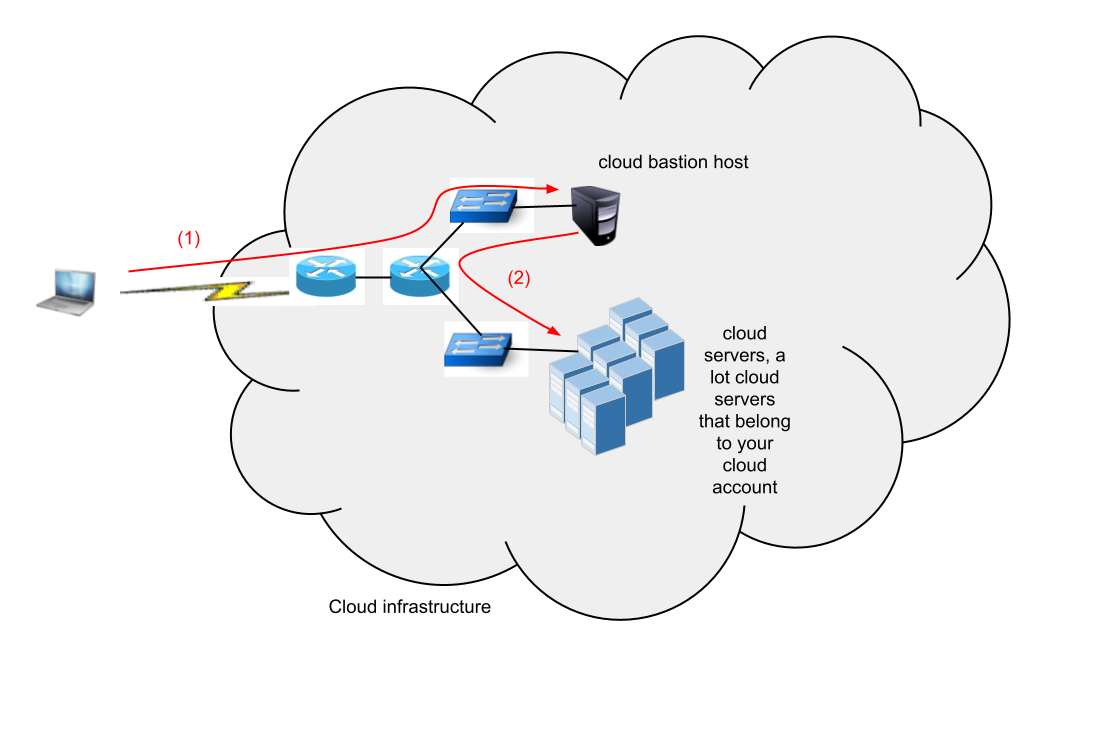
An hardened servers should be used as a bastion host. This server will provide the following functions:
Problem
How to run ssh or scp command over ssh that is initiated by the client and need to be executed from a bastion host on other cloud server.
Solution
This relatively long script written in python that uses paramiko module demonstrates the idea. It can be definitely extended and improved but you get the idea I hope :).
An hardened servers should be used as a bastion host. This server will provide the following functions:
- Act as a secure gateway into the cloud environment
- You should configure all other server to accept connections from this server only
- From bastion you can lunch tasks that will perform further actions on the other cloud servers
Problem
How to run ssh or scp command over ssh that is initiated by the client and need to be executed from a bastion host on other cloud server.
Solution
This relatively long script written in python that uses paramiko module demonstrates the idea. It can be definitely extended and improved but you get the idea I hope :).
Sunday, August 19, 2012
Problem runing ssh or scp from a python script using the paramiko module
Paramiko project [1] is a native SSH Python library for scritpting. It provides an extensible API that allows you to imitate a SSH session, control it and later as well as execute commands.
I tried to use it to implement one of my Rackconnect scritps:
First attempt.
Below is the error message I always got.
The problems is that the exec_command() function [2] doens't open a SSH session that has a terminal attached. I couldn't find a working solution using it so I have written and to use invoke_shell() function [3] instead. Most of the code was inspired and copied from an example found here [4].Below is my working script.
Second attempt This is the output when we run it this time.
As we can see the invoke_shell() function is very different from the exec_command() one. To make it work we have to deal with all the terminal outputs and make sure we sent the command string at a right time. We can see as well as that with default terminal settings the output is not showing all text. We can see only part of the overlapped command string we sent in line #11
References
I tried to use it to implement one of my Rackconnect scritps:
- create a cloud server, let's call it a bastion server
- connect to bastion server over SSH
- execute ssh command from bastion against other cloud server (10.178.7.217/ServiceNet) or
- execute scp command to copy a file from bastion to a cloud server over local ServiceNet
First attempt.
Below is the error message I always got.
$ python -u example_paramiko_notty.py

 test 1
 cmd pwd; ls; date

stdout : /root
stdout : check_rackconnect.sh
stdout : Sun Aug 19 19:04:03 UTC 2012

 test 2
 cmd scp -q  -o NumberOfPasswordPrompts=1 -o StrictHostKeyChecking=no /root/check_rackconnect.sh root@10.178.7.217:~/; echo $? done.

stdout : 1 done.
stderr : lost connection

 test 3
 cmd scp -q -v -o NumberOfPasswordPrompts=1 -o StrictHostKeyChecking=no /root/check_rackconnect.sh root@10.178.7.217:~/; echo $? done.

stdout : 1 done.
stderr : Executing: program /usr/bin/ssh host 10.178.7.217, user root, command scp -v -t ~/
stderr : OpenSSH_5.3p1 Debian-3ubuntu3, OpenSSL 0.9.8k 25 Mar 2009
stderr : debug1: Reading configuration data /etc/ssh/ssh_config
stderr : debug1: Applying options for *
stderr : debug1: Connecting to 10.178.7.217 [10.178.7.217] port 22.
stderr : debug1: Connection established.
stderr : debug1: permanently_set_uid: 0/0
stderr : debug1: identity file /root/.ssh/identity type -1
stderr : debug1: identity file /root/.ssh/id_rsa type -1
stderr : debug1: identity file /root/.ssh/id_dsa type -1
stderr : debug1: Remote protocol version 2.0, remote software version OpenSSH_5.3p1 Debian-3ubuntu3
stderr : debug1: match: OpenSSH_5.3p1 Debian-3ubuntu3 pat OpenSSH*
stderr : debug1: Enabling compatibility mode for protocol 2.0
stderr : debug1: Local version string SSH-2.0-OpenSSH_5.3p1 Debian-3ubuntu3
stderr : debug1: SSH2_MSG_KEXINIT sent
stderr : debug1: SSH2_MSG_KEXINIT received
stderr : debug1: kex: server-client aes128-ctr hmac-md5 none
stderr : debug1: kex: client-server aes128-ctr hmac-md5 none
stderr : debug1: SSH2_MSG_KEX_DH_GEX_REQUEST(1024 1024 8192) sent
stderr : debug1: expecting SSH2_MSG_KEX_DH_GEX_GROUP
stderr : debug1: SSH2_MSG_KEX_DH_GEX_INIT sent
stderr : debug1: expecting SSH2_MSG_KEX_DH_GEX_REPLY
stderr : debug1: Host '10.178.7.217' is known and matches the RSA host key.
stderr : debug1: Found key in /root/.ssh/known_hosts:5
stderr : debug1: ssh_rsa_verify: signature correct
stderr : debug1: SSH2_MSG_NEWKEYS sent
stderr : debug1: expecting SSH2_MSG_NEWKEYS
stderr : debug1: SSH2_MSG_NEWKEYS received
stderr : debug1: SSH2_MSG_SERVICE_REQUEST sent
stderr : debug1: SSH2_MSG_SERVICE_ACCEPT received
stderr : debug1: Authentications that can continue: publickey,password
stderr : debug1: Next authentication method: publickey
stderr : debug1: Trying private key: /root/.ssh/identity
stderr : debug1: Trying private key: /root/.ssh/id_rsa
stderr : debug1: Trying private key: /root/.ssh/id_dsa
stderr : debug1: Next authentication method: password
stderr : debug1: read_passphrase: can't open /dev/tty: No such device or address
stderr : debug1: Authentications that can continue: publickey,password
stderr : debug1: No more authentication methods to try.
stderr : Permission denied (publickey,password).
stderr : lost connection
The problems is that the exec_command() function [2] doens't open a SSH session that has a terminal attached. I couldn't find a working solution using it so I have written and to use invoke_shell() function [3] instead. Most of the code was inspired and copied from an example found here [4].Below is my working script.
Second attempt This is the output when we run it this time.
$ python -u example_paramiko_with_tty.py

 test 2
 cmd scp -q  -o NumberOfPasswordPrompts=1 -o StrictHostKeyChecking=no /root/check_rackconnect.sh root@10.178.7.217:~/; echo $? done.

Linux rctest 2.6.32-31-server #61-Ubuntu SMP Fri Apr 8 19:44:42 UTC 2011 x86_64 GNU/Linux
Ubuntu 10.04 LTS

Welcome to the Ubuntu Server!
 * Documentation:  http://www.ubuntu.com/server/doc
Last login: Sun Aug 19 19:47:09 2012 from bbb.rrr.com

root@rctest:~#
/root/check_rackconnect.sh root@10.178.7.217:~/; echo $? done.no

root@10.178.7.217's password:

0 done.
root@rctest:~#
command was successful:True
As we can see the invoke_shell() function is very different from the exec_command() one. To make it work we have to deal with all the terminal outputs and make sure we sent the command string at a right time. We can see as well as that with default terminal settings the output is not showing all text. We can see only part of the overlapped command string we sent in line #11
References
- http://www.lag.net/paramiko/
- http://www.lag.net/paramiko/docs/paramiko.SSHClient-class.html#exec_command
- http://www.lag.net/paramiko/docs/paramiko.SSHClient-class.html#invoke_shell
- http://stackoverflow.com/questions/1911690/nested-ssh-session-with-paramiko
- http://www.minvolai.com/blog/2009/09/how-to-ssh-in-python-using-paramiko/
- http://jessenoller.com/2009/02/05/ssh-programming-with-paramiko-completely-different/
Others interesting links
Tuesday, August 14, 2012
How to terminate a ssh session to a cloud server that hanged
When working with Rackspace cloud serves you run sometimes to an issue with the remote ssh session that it hangs.
This is expected behavior. The session after some time of inactivity timeouts and in my case this led to my bash terminal session to hang. As I didn't want to terminate and close my terminal to resolve this issue and as well as I wanted to keep my previuos log still available I was looking for a possible solution.
Solution
To terminate a hanged ssh session please type the following keys: [enter]~.
Example
References
This is expected behavior. The session after some time of inactivity timeouts and in my case this led to my bash terminal session to hang. As I didn't want to terminate and close my terminal to resolve this issue and as well as I wanted to keep my previuos log still available I was looking for a possible solution.
Solution
To terminate a hanged ssh session please type the following keys: [enter]~.
Example
root@mycloud:~# ~?
Supported escape sequences:
  ~.  - terminate connection (and any multiplexed sessions)
  ~B  - send a BREAK to the remote system
  ~C  - open a command line
  ~R  - Request rekey (SSH protocol 2 only)
  ~^Z - suspend ssh
  ~#  - list forwarded connections
  ~&  - background ssh (when waiting for connections to terminate)
  ~?  - this message
  ~~  - send the escape character by typing it twice
(Note that escapes are only recognized immediately after newline.)
# we waiting now for the session to timeout
root@rctest:~#

# no press the magica keys :)
root@rctest:~# Connection to 83.138.183.15 closed.
References
Saturday, August 11, 2012
How to execute remote commands from python over ssh connection
There are a number of possible solution for Python that allow you to execute a command remotely. Below is a list of libraries/modules I found when researching it.
This is a simple python example as well.
- paramiko http://www.lag.net/paramiko/
- ssh module ( a wrapper for paramiko) http://stackoverflow.com/questions/1939107/python-libraries-for-ssh-handling
- pythion binding to C libssh library http://www.no-ack.org/2010/11/python-bindings-for-libssh2.html
- fabric http://docs.fabfile.org/en/1.4.3/index.html>
- python SSH module (base on the paramiko) http://pypi.python.org/pypi/ssh/1.7.11
http://pypi.python.org/pypi/paramiko/1.7.7.2
http://media.commandline.org.uk/code/ssh.txt
https://github.com/bitprophet/ssh
This is a simple python example as well.
Friday, February 10, 2012
The ssh session to Rackspace Cloud Servers timeouts automaticaly and hangs
Problem description
After provisioning a Linux Rackspace Cloud Servers you can login to the server using ssh client.
If the ssh session is inactive for some time the underlying tcp session of the ssh connection will be automaticaly closed.
Impact
Often you work on the some server from multiple terminals or multiple ssh client sessions. When the ssh session timeouts you have to loggin again.
Depending on the ssh client you use the console output you had may be lost.
After logging again the bash history maybe lost.
Workaround
We can avoid the session to be terminated by trying to print something on the screen at a regular interval. The simple command below is going to manipulate the screen cursor position and prints a current data in the right bottom corner of the ssh session screen.
To execute it for every new ssh session opened we have to cusomise the bash .profile config file.
cat >> .profile <<DONE
while true; do
  tput sc
  tput cup $(tput lines) $(tput cols)
  tput cub 8
  echo -n $(date +%T)
  tput rc
  sleep 30
done &
DONE
References
man terminfo
How to: Change / Setup bash custom prompt (PS1)
Colours and Cursor Movement With tput
http://bashish.sourceforge.net/
Friday, December 30, 2011
How to connect over ssh to a server and automatically provide the user name and password using putty or ssh
With the benefit of easy of use of cloud services we can provision a new cloud base virtual server within a minute. Having the server ready we still have to login there to do our job or tests.
As an example you can take a look at the Cloud Servers from Rackspace [1].
By using the free windows ssh implementation like putty [2] or standard linux openssh ssh client we can easily login over a secure connection into our server by using the SSH protocol.
Problem
When you want to quickly and temporarily provision a cloud server it is time wasting when you have to provide the user name and password each time to login to do the work.
As the cloud server will be used for a limited (short) time we would like to be able to login with one 'click' or one command only.
Solution
The Multi-Tabbed PuTTY tool allow us to use a wrapper around the putty tool and provide an easy to use solution to open a new ssh session on demand without having to wory about he user name or password.
Multi-Tabbed PuTTY
http://www.ttyplus.com/
For the Linux system we can use an simple script using the 'expect' tool to start the ssh client.
SSH - Passing Unix login passwords through shell scripts
http://nixcraft.com/shell-scripting/4489-ssh-passing-unix-login-passwords-through-shell-scripts.html
Security
From the security point of view storing the passwords is always a bad idea. There are always some alternative methods. Some examples listed below:
Password-less logins with OpenSSH
http://www.debian-administration.org/articles/152
http://www.thegeekstuff.com/2008/11/3-steps-to-perform-ssh-login-without-password-using-ssh-keygen-ssh-copy-id/
References
[1]
http://www.rackspace.com/cloud/cloud_hosting_products/servers/
[2]
http://www.chiark.greenend.org.uk/~sgtatham/putty/
As an example you can take a look at the Cloud Servers from Rackspace [1].
By using the free windows ssh implementation like putty [2] or standard linux openssh ssh client we can easily login over a secure connection into our server by using the SSH protocol.
Problem
When you want to quickly and temporarily provision a cloud server it is time wasting when you have to provide the user name and password each time to login to do the work.
As the cloud server will be used for a limited (short) time we would like to be able to login with one 'click' or one command only.
Solution
The Multi-Tabbed PuTTY tool allow us to use a wrapper around the putty tool and provide an easy to use solution to open a new ssh session on demand without having to wory about he user name or password.
Multi-Tabbed PuTTY
http://www.ttyplus.com/
For the Linux system we can use an simple script using the 'expect' tool to start the ssh client.
SSH - Passing Unix login passwords through shell scripts
http://nixcraft.com/shell-scripting/4489-ssh-passing-unix-login-passwords-through-shell-scripts.html
Security
From the security point of view storing the passwords is always a bad idea. There are always some alternative methods. Some examples listed below:
Password-less logins with OpenSSH
http://www.debian-administration.org/articles/152
http://www.thegeekstuff.com/2008/11/3-steps-to-perform-ssh-login-without-password-using-ssh-keygen-ssh-copy-id/
References
[1]
http://www.rackspace.com/cloud/cloud_hosting_products/servers/
[2]
http://www.chiark.greenend.org.uk/~sgtatham/putty/
Subscribe to:
Posts (Atom)

 Posts
Posts


