Showing posts with label windows. Show all posts
Showing posts with label windows. Show all posts
Saturday, January 4, 2014
Windows cheat sheet
msconfig - is a system utility to troubleshoot the Microsoft Windows startup process.


Sunday, February 10, 2013
How to automatically adjust mouse wheel scrolling in windows
My old mouse got broken and and I've bought a new mouse to replace it. The hardware works fine the only problem is that every time when I restart my windows its get a random value of the "Roll the wheel one notch to scroll" value. You can imagine that when the values have 30 a single wheel notch scrolls 30 lines of text in my browser what makes it very annoying.

Problem
How to change the value of "Roll the wheel one notch to scroll" on windows start to lower value.
Analisis and solution description
We are going to use autoit tools[1] that provide automation features for Windows and allow us to modify the registry after system boot. This is the parameter that controls mouse wheel[2]:
A script that sets the registry variable to a new value can be found here: https://github.com/rtomaszewski/tools/blob/master/wheel-scroling.au3
To run it from command line please execute this command and check on Control Panel if the right value has changed:
The last thing is to create a *.bat script and add it to logon/startup list to be run after user login[3]:

Problem
How to change the value of "Roll the wheel one notch to scroll" on windows start to lower value.
Analisis and solution description
We are going to use autoit tools[1] that provide automation features for Windows and allow us to modify the registry after system boot. This is the parameter that controls mouse wheel[2]:
HKEY_CURRENT_USER\Control Panel\Desktop\WheelScrollLines
A script that sets the registry variable to a new value can be found here: https://github.com/rtomaszewski/tools/blob/master/wheel-scroling.au3
To run it from command line please execute this command and check on Control Panel if the right value has changed:
"C:\Program Files (x86)\AutoIt3\AutoIt3.exe" wheel-scroling.au3
The last thing is to create a *.bat script and add it to logon/startup list to be run after user login[3]:
- Run the gpedit.msc
- Navigate to the User Configuration > Windows Settings > Scripts(Log on/Log off) option.
- Add your *.bat script
- http://www.autoitscript.com/site/
- http://www.autoitscript.com/forum/topic/69061-need-help-with-script/
- http://www.addictivetips.com/windows-tips/how-to-run-programs-automatically-on-windows-7-system-startup/
Tuesday, November 13, 2012
What happens to FTPS data channel if client closes control connection
There are couple of extensions added to standard FTP protocol to make it secure. It is important
as in the default FTP configuration the control as well as the data channel use clear text to exchange commands
or transmit data.
Problem
We assume that we were able to established a successful FTPS base session between a client and server. The client started a new data session to download a large file from the server or is uploading a file using the passive mode.
What happens to a file transfer if the control session is terminated by the client.
Troubleshooting
To verify the scenario we are going to setup a simple test scenario like in Does IPv4 based FTPS server supports EPSV FTP protocol extension blog [1].
As the curl client by default is not closing the control connections (what is a correct behavior that we will discuss at the end of this blog) we are going to use an active method to close an established tcp session described here How to forcibly kill an established TCP connection in Linux [2].
Test #1: client download a large file
Client logs
Logs when the control connection is being closed and reseted
These are the client logs from the start of downloading until the control session is closed.
Server logs
As the file download started this is logged on the server.

After the client control connections is terminated the server logs '426 Connection closed' tranfer aborted' log message.

After about 3-5 seconds after the connections clears from the server logs.

Test #2: client upload a large file
Client logs
The client logs when control channel is terminated.
Curl logs when the upload starts and the control channel is terminated.
Server logs
When the upload starts and 1-3 seconds after the control channel is closed.


Results discussion
We can see that every time the client closes the TCP session used to host the control channel bad things happen to the upload or download process.
This is expected behavior and is documented in the relevant RFC documents:
http://tools.ietf.org/html/rfc4217
7. Data Connection Behaviour
http://tools.ietf.org/html/rfc959
3.2. ESTABLISHING DATA CONNECTIONS
The server MUST close the data connection under the following conditions:
1. The server has completed sending data in a transfer mode
that requires a close to indicate EOF.
2. The server receives an ABORT command from the user.
3. The port specification is changed by a command from the
user.
4. The control connection is closed legally or otherwise.
5. An irrecoverable error condition occurs.
References
Problem
We assume that we were able to established a successful FTPS base session between a client and server. The client started a new data session to download a large file from the server or is uploading a file using the passive mode.
What happens to a file transfer if the control session is terminated by the client.
Troubleshooting
To verify the scenario we are going to setup a simple test scenario like in Does IPv4 based FTPS server supports EPSV FTP protocol extension blog [1].
As the curl client by default is not closing the control connections (what is a correct behavior that we will discuss at the end of this blog) we are going to use an active method to close an established tcp session described here How to forcibly kill an established TCP connection in Linux [2].
Test #1: client download a large file
Client logs
Logs when the control connection is being closed and reseted
root@clinet:~# netstat -tulpan | grep curl
tcp        0      0 5.79.21.166:45707       5.79.17.48:8000         ESTABLISHED 5546/curl
tcp    64210      0 5.79.21.166:43796       5.79.17.48:8011         ESTABLISHED 5546/curl

root@clinet:~# ./killcx.pl 5.79.17.48:8011
killcx v1.0.3 - (c)2009-2011 Jerome Bruandet - http://killcx.sourceforge.net/

[PARENT] checking connection with [5.79.17.48:8011]
[PARENT] found connection with [5.79.21.166:43796] (ESTABLISHED)
[PARENT] forking child
[CHILD]  interface not defined, will use [eth0]
[CHILD]  setting up filter to sniff ACK on [eth0] for 5 seconds
[CHILD]  hooked ACK from [5.79.21.166:43796]
[CHILD]  found AckNum [1229126485] and SeqNum [3095306962]
[CHILD]  sending spoofed RST to [5.79.21.166:43796] with SeqNum [1229126485]
[CHILD]  sending RST to remote host as well with SeqNum [3095306962]
[CHILD]  all done, sending USR1 signal to parent [5781] and exiting
[PARENT] received child signal, checking results...
         => success : connection has been closed !
These are the client logs from the start of downloading until the control session is closed.
root@client:~# curl -v --limit-rate 10K -o file.txt -u rado:pass -k --ftp-ssl ftp://5.79.17.48:8000/c2900-universalk9-mz.SPA.152-1.T.bin
* About to connect() to 5.79.17.48 port 8000 (#0)
*   Trying 5.79.17.48...   % Total    % Received % Xferd  Average Speed   Time    Time     Time  Current
                                 Dload  Upload   Total   Spent    Left  Speed
  0     0    0     0    0     0      0      0 --:--:-- --:--:-- --:--:--     0connected
< 220-FileZilla Server version 0.9.41 beta
< 220-written by Tim Kosse (Tim.Kosse@gmx.de)
< 220 Please visit http://sourceforge.net/projects/filezilla/
> AUTH SSL
< 234 Using authentication type SSL
* successfully set certificate verify locations:
*   CAfile: none
  CApath: /etc/ssl/certs
* SSLv3, TLS handshake, Client hello (1):
} [data not shown]
* SSLv3, TLS handshake, Server hello (2):
{ [data not shown]
* SSLv3, TLS handshake, CERT (11):
{ [data not shown]
* SSLv3, TLS handshake, Server finished (14):
{ [data not shown]
* SSLv3, TLS handshake, Client key exchange (16):
} [data not shown]
* SSLv3, TLS change cipher, Client hello (1):
} [data not shown]
* SSLv3, TLS handshake, Finished (20):
} [data not shown]
* SSLv3, TLS change cipher, Client hello (1):
{ [data not shown]
* SSLv3, TLS handshake, Finished (20):
{ [data not shown]
* SSL connection using AES256-SHA
* Server certificate:
*        subject: CN=www; C=11; ST=aaa; L=bbb; O=ddd; OU=aaa; emailAddress=a@a.com
*        start date: 2012-11-08 00:13:54 GMT
*        expire date: 2013-11-08 00:13:54 GMT
*        common name: www (does not match '5.79.17.48')
*        issuer: CN=www; C=11; ST=aaa; L=bbb; O=ddd; OU=aaa; emailAddress=a@a.com
*        SSL certificate verify result: self signed certificate (18), continuing anyway.
> USER rado
< 331 Password required for rado
> PASS pass
< 230 Logged on
> PBSZ 0
< 200 PBSZ=0
> PROT P
< 200 Protection level set to P
> PWD
< 257 "/" is current directory.
* Entry path is '/'
> EPSV
* Connect data stream passively
< 229 Entering Extended Passive Mode (|||8011|)
*   Trying 5.79.17.48... connected
* Connecting to 5.79.17.48 (5.79.17.48) port 8011
> TYPE I
< 200 Type set to I
> SIZE c2900-universalk9-mz.SPA.152-1.T.bin
< 213 77200652
> RETR c2900-universalk9-mz.SPA.152-1.T.bin
< 150 Connection accepted
* Doing the SSL/TLS handshake on the data stream
* successfully set certificate verify locations:
*   CAfile: none
  CApath: /etc/ssl/certs
* SSL re-using session ID
* SSLv3, TLS handshake, Client hello (1):
} [data not shown]
* SSLv3, TLS handshake, Server hello (2):
{ [data not shown]
* SSLv3, TLS change cipher, Client hello (1):
{ [data not shown]
* SSLv3, TLS handshake, Finished (20):
{ [data not shown]
* SSLv3, TLS change cipher, Client hello (1):
} [data not shown]
* SSLv3, TLS handshake, Finished (20):
} [data not shown]
* SSL connection using AES256-SHA
* Server certificate:
*        subject: CN=www; C=11; ST=aaa; L=bbb; O=ddd; OU=aaa; emailAddress=a@a.com
*        start date: 2012-11-08 00:13:54 GMT
*        expire date: 2013-11-08 00:13:54 GMT
*        common name: www (does not match '5.79.17.48')
*        issuer: CN=www; C=11; ST=aaa; L=bbb; O=ddd; OU=aaa; emailAddress=a@a.com
*        SSL certificate verify result: self signed certificate (18), continuing anyway.
* Maxdownload = -1
* Getting file with size: 77200652
{ [data not shown]
  0 73.6M    0  616k    0     0  10095      0  2:07:27  0:01:02  2:06:25  9753* SSL read: error:00000000:lib(0):func(0):reason(0), errno 104
  0 73.6M    0  620k    0     0  10160      0  2:06:38  0:01:02  2:05:36 11170
* Closing connection #0
* SSLv3, TLS alert, Client hello (1):
} [data not shown]
curl: (56) SSL read: error:00000000:lib(0):func(0):reason(0), errno 104
Server logs
As the file download started this is logged on the server.

After the client control connections is terminated the server logs '426 Connection closed' tranfer aborted' log message.

After about 3-5 seconds after the connections clears from the server logs.

Test #2: client upload a large file
Client logs
The client logs when control channel is terminated.
root@client:~# netstat -tulpan | grep curl
tcp        0      0 5.79.21.166:43489       5.79.17.48:8016         ESTABLISHED 13177/curl
tcp        0      0 5.79.21.166:45717       5.79.17.48:8000         ESTABLISHED 13177/curl

root@client:~# ./killcx.pl  5.79.17.48:8016
killcx v1.0.3 - (c)2009-2011 Jerome Bruandet - http://killcx.sourceforge.net/

[PARENT] checking connection with [5.79.17.48:8016]
[PARENT] found connection with [5.79.21.166:43489] (ESTABLISHED)
[PARENT] forking child
[CHILD]  interface not defined, will use [eth0]
[CHILD]  setting up filter to sniff ACK on [eth0] for 5 seconds
[PARENT] sending spoofed SYN to [5.79.21.166:43489] with bogus SeqNum
[CHILD]  hooked ACK from [5.79.21.166:43489]
[CHILD]  found AckNum [781536832] and SeqNum [2094006657]
[CHILD]  sending spoofed RST to [5.79.21.166:43489] with SeqNum [781536832]
[CHILD]  sending RST to remote host as well with SeqNum [2094006657]
[CHILD]  all done, sending USR1 signal to parent [13547] and exiting
[PARENT] received child signal, checking results...
         => success : connection has been closed !
Curl logs when the upload starts and the control channel is terminated.
root@client:~# curl -v --limit-rate 10K -T file.txt -u rado:pass -k --ftp-ssl ftp://5.79.17.48:8000/
* About to connect() to 5.79.17.48 port 8000 (#0)
*   Trying 5.79.17.48...   % Total    % Received % Xferd  Average Speed   Time    Time     Time  Current
                                 Dload  Upload   Total   Spent    Left  Speed
  0     0    0     0    0     0      0      0 --:--:-- --:--:-- --:--:--     0connected
< 220-FileZilla Server version 0.9.41 beta
< 220-written by Tim Kosse (Tim.Kosse@gmx.de)
< 220 Please visit http://sourceforge.net/projects/filezilla/
> AUTH SSL
  0     0    0     0    0     0      0      0 --:--:-- --:--:-- --:--:--     0< 234 Using authentication type SSL
* successfully set certificate verify locations:
*   CAfile: none
  CApath: /etc/ssl/certs
* SSLv3, TLS handshake, Client hello (1):
} [data not shown]
* SSLv3, TLS handshake, Server hello (2):
{ [data not shown]
* SSLv3, TLS handshake, CERT (11):
{ [data not shown]
* SSLv3, TLS handshake, Server finished (14):
{ [data not shown]
* SSLv3, TLS handshake, Client key exchange (16):
} [data not shown]
* SSLv3, TLS change cipher, Client hello (1):
} [data not shown]
* SSLv3, TLS handshake, Finished (20):
} [data not shown]
* SSLv3, TLS change cipher, Client hello (1):
{ [data not shown]
* SSLv3, TLS handshake, Finished (20):
{ [data not shown]
* SSL connection using AES256-SHA
* Server certificate:
*        subject: CN=www; C=11; ST=aaa; L=bbb; O=ddd; OU=aaa; emailAddress=a@a.com
*        start date: 2012-11-08 00:13:54 GMT
*        expire date: 2013-11-08 00:13:54 GMT
*        common name: www (does not match '5.79.17.48')
*        issuer: CN=www; C=11; ST=aaa; L=bbb; O=ddd; OU=aaa; emailAddress=a@a.com
*        SSL certificate verify result: self signed certificate (18), continuing anyway.
> USER rado
< 331 Password required for rado
> PASS pass
< 230 Logged on
> PBSZ 0
< 200 PBSZ=0
> PROT P
< 200 Protection level set to P
> PWD
< 257 "/" is current directory.
* Entry path is '/'
> EPSV
* Connect data stream passively
< 229 Entering Extended Passive Mode (|||8016|)
*   Trying 5.79.17.48... connected
* Connecting to 5.79.17.48 (5.79.17.48) port 8016
> TYPE I
< 200 Type set to I
> STOR file.txt
< 150 Connection accepted
* Doing the SSL/TLS handshake on the data stream
* successfully set certificate verify locations:
*   CAfile: none
  CApath: /etc/ssl/certs
* SSL re-using session ID
* SSLv3, TLS handshake, Client hello (1):
} [data not shown]
* SSLv3, TLS handshake, Server hello (2):
{ [data not shown]
* SSLv3, TLS change cipher, Client hello (1):
{ [data not shown]
* SSLv3, TLS handshake, Finished (20):
{ [data not shown]
* SSLv3, TLS change cipher, Client hello (1):
} [data not shown]
* SSLv3, TLS handshake, Finished (20):
} [data not shown]
* SSL connection using AES256-SHA
* Server certificate:
*        subject: CN=www; C=11; ST=aaa; L=bbb; O=ddd; OU=aaa; emailAddress=a@a.com
*        start date: 2012-11-08 00:13:54 GMT
*        expire date: 2013-11-08 00:13:54 GMT
*        common name: www (does not match '5.79.17.48')
*        issuer: CN=www; C=11; ST=aaa; L=bbb; O=ddd; OU=aaa; emailAddress=a@a.com
*        SSL certificate verify result: self signed certificate (18), continuing anyway.
} [data not shown]
  0 73.6M    0     0    0  688k      0  10122  2:07:07  0:01:09  2:05:58  9814* SSL_write() returned SYSCALL, errno = 10422:51:35
  0 73.6M    0     0    0  688k      0  10122  2:07:07  0:01:09  2:05:58  8177
* Closing connection #0
* SSLv3, TLS alert, Client hello (1):
} [data not shown]
curl: (55) SSL_write() returned SYSCALL, errno = 104
Server logs
When the upload starts and 1-3 seconds after the control channel is closed.


Results discussion
We can see that every time the client closes the TCP session used to host the control channel bad things happen to the upload or download process.
This is expected behavior and is documented in the relevant RFC documents:
http://tools.ietf.org/html/rfc4217
7. Data Connection Behaviour
http://tools.ietf.org/html/rfc959
3.2. ESTABLISHING DATA CONNECTIONS
The server MUST close the data connection under the following conditions:
1. The server has completed sending data in a transfer mode
that requires a close to indicate EOF.
2. The server receives an ABORT command from the user.
3. The port specification is changed by a command from the
user.
4. The control connection is closed legally or otherwise.
5. An irrecoverable error condition occurs.
References
Monday, November 12, 2012
Does IPv4 based FTPS server supports EPSV FTP protocol extension
FTP Extension description
The EPSV stands for Extended Passive Mode and is defined in RFC 2428 [1].
According to the RFC specification it is used for:
This paper specifies extensions to FTP that will allow the protocol to work over IPv4 and IPv6.
...
The EPRT command allows for the specification of an extended address for the data connection.
...
The following are sample EPRT commands:
EPRT |1|132.235.1.2|6275|
EPRT |2|1080::8:800:200C:417A|5282|
In the RFC I couldn't find any word about default values or how the server should behave if the client doesn't provide any additional arguments and used the command in this simple way:
Test configuration
To verify the ftp extension I build a simple test scenario using Rackspace cloud:


Client connection
Below are client logs when we try to download a file from ftps server.
FileZilla server connection logs
As the client connects and start the session these are the logs we can observe on the serve.
Summary
We can see that the EPSV extension can be used even on a server that has only IPv4 addresses. It is not a surprise as the RFC clearly defines that both protocols are supported (IPv6 and IPv4).
What is interesting is the server that once receives the EPSV command that is sent by the client using IPv4 it assumes this is the default protocol and defaults itself to IPv4 address.
References
The EPSV stands for Extended Passive Mode and is defined in RFC 2428 [1].
According to the RFC specification it is used for:
This paper specifies extensions to FTP that will allow the protocol to work over IPv4 and IPv6.
...
The EPRT command allows for the specification of an extended address for the data connection.
...
The following are sample EPRT commands:
EPRT |1|132.235.1.2|6275|
EPRT |2|1080::8:800:200C:417A|5282|
In the RFC I couldn't find any word about default values or how the server should behave if the client doesn't provide any additional arguments and used the command in this simple way:
EPSV
Test configuration
To verify the ftp extension I build a simple test scenario using Rackspace cloud:
- Windows 2008 cloud server running FTPS server; I used FileZilla Server [2]
- Ubuntu 12.04 LTS Linux base system acting as a client; we used curl tool to simulate FTPS requests

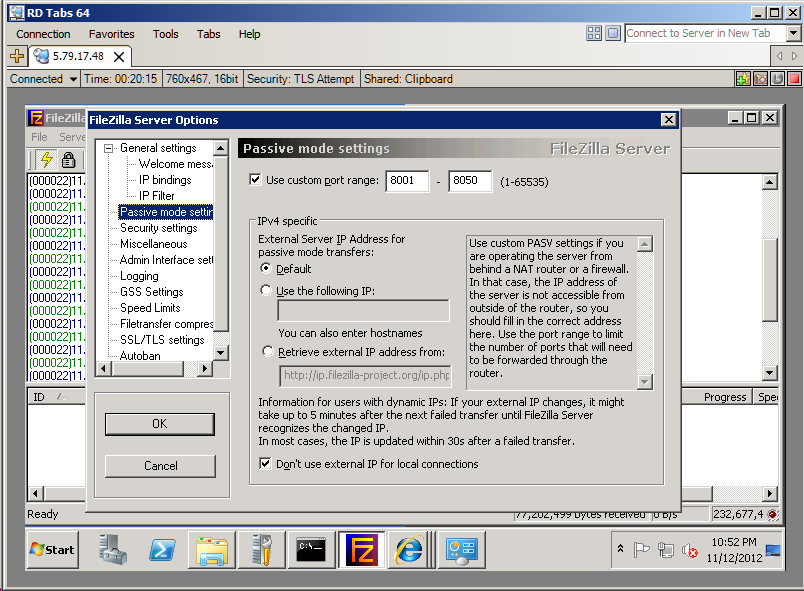

Client connection
Below are client logs when we try to download a file from ftps server.
root@client:~# curl -v -o tmp -u user:pass -k --ftp-ssl ftp://<server_ip>:8000/file.txt
* About to connect() to 5.79.17.48 port 8000 (#0)
< 220-FileZilla Server version 0.9.41 beta
< 220-written by Tim Kosse (Tim.Kosse@gmx.de)
< 220 Please visit http://sourceforge.net/projects/filezilla/
> AUTH SSL
< 234 Using authentication type SSL
* successfully set certificate verify locations:
*   CAfile: none
  CApath: /etc/ssl/certs
* SSLv3, TLS handshake, Client hello (1):
} [data not shown]
* SSLv3, TLS handshake, Server hello (2):
{ [data not shown]
* SSLv3, TLS handshake, CERT (11):
{ [data not shown]
* SSLv3, TLS handshake, Server finished (14):
{ [data not shown]
* SSLv3, TLS handshake, Client key exchange (16):
} [data not shown]
* SSLv3, TLS change cipher, Client hello (1):
} [data not shown]
* SSLv3, TLS handshake, Finished (20):
} [data not shown]
* SSLv3, TLS change cipher, Client hello (1):
{ [data not shown]
* SSLv3, TLS handshake, Finished (20):
{ [data not shown]
* SSL connection using AES256-SHA
* Server certificate:
*        subject: CN=www; C=11; ST=aaa; L=bbb; O=ddd; OU=aaa; emailAddress=a@a.com
*        start date: 2012-11-08 00:13:54 GMT
*        expire date: 2013-11-08 00:13:54 GMT
*        common name: www (does not match '5.79.17.48')
*        issuer: CN=www; C=11; ST=aaa; L=bbb; O=ddd; OU=aaa; emailAddress=a@a.com
*        SSL certificate verify result: self signed certificate (18), continuing anyway.
> USER user
  0     0    0     0    0     0      0      0 --:--:-- --:--:-- --:--:--     0< 331 Password required for user
> PASS pass
< 230 Logged on
> PBSZ 0
< 200 PBSZ=0
> PROT P
< 200 Protection level set to P
> PWD
< 257 "/" is current directory.
* Entry path is '/'
> EPSV
* Connect data stream passively
< 229 Entering Extended Passive Mode (|||8007|)
*   Trying 5.79.17.48... connected
* Connecting to 5.79.17.48 (5.79.17.48) port 8007
> TYPE I
< 200 Type set to I
> SIZE file.txt
< 213 77200652
> RETR file.txt
< 150 Connection accepted
* Doing the SSL/TLS handshake on the data stream
* successfully set certificate verify locations:
*   CAfile: none
  CApath: /etc/ssl/certs
* SSL re-using session ID
* SSLv3, TLS handshake, Client hello (1):
} [data not shown]
* SSLv3, TLS handshake, Server hello (2):
{ [data not shown]
* SSLv3, TLS change cipher, Client hello (1):
{ [data not shown]
* SSLv3, TLS handshake, Finished (20):
{ [data not shown]
* SSLv3, TLS change cipher, Client hello (1):
} [data not shown]
* SSLv3, TLS handshake, Finished (20):
} [data not shown]
* SSL connection using AES256-SHA
* Server certificate:
*        subject: CN=www; C=11; ST=aaa; L=bbb; O=ddd; OU=aaa; emailAddress=a@a.com
*        start date: 2012-11-08 00:13:54 GMT
*        expire date: 2013-11-08 00:13:54 GMT
*        common name: www (does not match '5.79.17.48')
*        issuer: CN=www; C=11; ST=aaa; L=bbb; O=ddd; OU=aaa; emailAddress=a@a.com
*        SSL certificate verify result: self signed certificate (18), continuing anyway.
* Maxdownload = -1
* Getting file with size: 77200652
{ [data not shown]
FileZilla server connection logs
As the client connects and start the session these are the logs we can observe on the serve.
Creating listen socket on port 8000...
Creating listen socket on port 990...
Server online
(000022)11/12/2012 22:33:35 PM - (not logged in) (5.79.21.166)> Connected, sending welcome message...
(000022)11/12/2012 22:33:35 PM - (not logged in) (5.79.21.166)> 220-FileZilla Server version 0.9.41 beta
(000022)11/12/2012 22:33:35 PM - (not logged in) (5.79.21.166)> 220-written by Tim Kosse (Tim.Kosse@gmx.de)
(000022)11/12/2012 22:33:35 PM - (not logged in) (5.79.21.166)> 220 Please visit http://sourceforge.net/projects/filezilla/
(000022)11/12/2012 22:33:35 PM - (not logged in) (5.79.21.166)> AUTH SSL
(000022)11/12/2012 22:33:35 PM - (not logged in) (5.79.21.166)> 234 Using authentication type SSL
(000022)11/12/2012 22:33:35 PM - (not logged in) (5.79.21.166)> SSL connection established
(000022)11/12/2012 22:33:35 PM - (not logged in) (5.79.21.166)> USER user
(000022)11/12/2012 22:33:35 PM - (not logged in) (5.79.21.166)> 331 Password required for user
(000022)11/12/2012 22:33:35 PM - (not logged in) (5.79.21.166)> PASS ********
(000022)11/12/2012 22:33:35 PM - user (5.79.21.166)> 230 Logged on
(000022)11/12/2012 22:33:35 PM - user (5.79.21.166)> PBSZ 0
(000022)11/12/2012 22:33:35 PM - user (5.79.21.166)> 200 PBSZ=0
(000022)11/12/2012 22:33:35 PM - user (5.79.21.166)> PROT P
(000022)11/12/2012 22:33:35 PM - user (5.79.21.166)> 200 Protection level set to P
(000022)11/12/2012 22:33:35 PM - user (5.79.21.166)> PWD
(000022)11/12/2012 22:33:35 PM - user (5.79.21.166)> 257 "/" is current directory.
(000022)11/12/2012 22:33:35 PM - user (5.79.21.166)> EPSV
(000022)11/12/2012 22:33:35 PM - user (5.79.21.166)> 229 Entering Extended Passive Mode (|||8007|)
(000022)11/12/2012 22:33:35 PM - user (5.79.21.166)> TYPE I
(000022)11/12/2012 22:33:35 PM - user (5.79.21.166)> 200 Type set to I
(000022)11/12/2012 22:33:35 PM - user (5.79.21.166)> SIZE c2900-universalk9-mz.SPA.152-1.T.bin
(000022)11/12/2012 22:33:35 PM - user (5.79.21.166)> 213 77200652
(000022)11/12/2012 22:33:35 PM - user (5.79.21.166)> RETR c2900-universalk9-mz.SPA.152-1.T.bin
(000022)11/12/2012 22:33:35 PM - user (5.79.21.166)> 150 Connection accepted
(000022)11/12/2012 22:33:35 PM - user (5.79.21.166)> SSL connection for data connection established
(000022)11/12/2012 22:34:33 PM - user (5.79.21.166)> 426 Connection closed; transfer aborted.
Summary
We can see that the EPSV extension can be used even on a server that has only IPv4 addresses. It is not a surprise as the RFC clearly defines that both protocols are supported (IPv6 and IPv4).
What is interesting is the server that once receives the EPSV command that is sent by the client using IPv4 it assumes this is the default protocol and defaults itself to IPv4 address.
References
Thursday, October 18, 2012
GNS3 doesn't list new VirtualBox Network Devices
Problem
GNS3 doesn't see any new Host-Only Ethernet Adapter created in VirtualBox.
Troubleshooting
We can verify and see that the new interfaces exists on the system.
The two above interfaces are missing and don't show in the GNS3 when trying add new VM. Because you don't see them on the GUI can't select them when trying to add a cloud VM to your network topology.
Solution
This is Windows problem that doesn't propagate and advertise new virtual interfaces once created. The solution is to restart the Windows Service called 'NetGroup Packet Filter Driver'.
References
GNS3 doesn't see any new Host-Only Ethernet Adapter created in VirtualBox.
Troubleshooting
We can verify and see that the new interfaces exists on the system.
C:\Users\user>netsh interface ipv4 show interfaces
Idx     Met         MTU          State                Name
---  ----------  ----------  ------------  ---------------------------
  1          50  4294967295  connected     Loopback Pseudo-Interface 1
 37          20        1500  connected     VirtualBox Host-Only Network #2
 21          20        1500  connected     VMware Network Adapter VMnet1
 22          20        1500  connected     VMware Network Adapter VMnet8
 24          20        1500  connected     VirtualBox Host-Only Network
 28          10        1500  connected     Local Area Connection 2
 45          20        1500  connected     VirtualBox Host-Only Network #3
The two above interfaces are missing and don't show in the GNS3 when trying add new VM. Because you don't see them on the GUI can't select them when trying to add a cloud VM to your network topology.
c:\Program Files\GNS3>"Network device list.cmd"

Network adapters on this machine:

NIO_gen_eth:\Device\NPF_{BAB3B416-5025-4142-A041-290EB05E7EA2}
 Name       : VMware Network Adapter VMnet8
 IP Address : 192.168.33.1
 Description: VMware Virtual Ethernet Adapter

NIO_gen_eth:\Device\NPF_{AA540984-A0AD-45BC-905F-C39E4A15010C}
 Name       : VirtualBox Host-Only Network
 IP Address : 192.168.56.1
 Description: Sun

NIO_gen_eth:\Device\NPF_{939368AC-34FE-47CB-9D4B-DC26D284D91E}
 Name       : VMware Network Adapter VMnet1
 IP Address : 192.168.91.1
 Description: VMware Virtual Ethernet Adapter

NIO_gen_eth:\Device\NPF_{991068D7-DDE1-45AB-B68F-24970ECA951B}
 Name       : Local Area Connection 2
 IP Address : 192.168.0.2
 Description: Marvell Yukon Ethernet Controller

Use as follows:
 F0/0 = NIO_gen_eth:\Device\NPF_{...}
Solution
This is Windows problem that doesn't propagate and advertise new virtual interfaces once created. The solution is to restart the Windows Service called 'NetGroup Packet Filter Driver'.
C:\Windows\system32>net stop npf
The NetGroup Packet Filter Driver service was stopped successfully.

C:\Windows\system32>net start npf
The NetGroup Packet Filter Driver service was started successfully.
References
Friday, December 30, 2011
How to connect over ssh to a server and automatically provide the user name and password using putty or ssh
With the benefit of easy of use of cloud services we can provision a new cloud base virtual server within a minute. Having the server ready we still have to login there to do our job or tests.
As an example you can take a look at the Cloud Servers from Rackspace [1].
By using the free windows ssh implementation like putty [2] or standard linux openssh ssh client we can easily login over a secure connection into our server by using the SSH protocol.
Problem
When you want to quickly and temporarily provision a cloud server it is time wasting when you have to provide the user name and password each time to login to do the work.
As the cloud server will be used for a limited (short) time we would like to be able to login with one 'click' or one command only.
Solution
The Multi-Tabbed PuTTY tool allow us to use a wrapper around the putty tool and provide an easy to use solution to open a new ssh session on demand without having to wory about he user name or password.
Multi-Tabbed PuTTY
http://www.ttyplus.com/
For the Linux system we can use an simple script using the 'expect' tool to start the ssh client.
SSH - Passing Unix login passwords through shell scripts
http://nixcraft.com/shell-scripting/4489-ssh-passing-unix-login-passwords-through-shell-scripts.html
Security
From the security point of view storing the passwords is always a bad idea. There are always some alternative methods. Some examples listed below:
Password-less logins with OpenSSH
http://www.debian-administration.org/articles/152
http://www.thegeekstuff.com/2008/11/3-steps-to-perform-ssh-login-without-password-using-ssh-keygen-ssh-copy-id/
References
[1]
http://www.rackspace.com/cloud/cloud_hosting_products/servers/
[2]
http://www.chiark.greenend.org.uk/~sgtatham/putty/
As an example you can take a look at the Cloud Servers from Rackspace [1].
By using the free windows ssh implementation like putty [2] or standard linux openssh ssh client we can easily login over a secure connection into our server by using the SSH protocol.
Problem
When you want to quickly and temporarily provision a cloud server it is time wasting when you have to provide the user name and password each time to login to do the work.
As the cloud server will be used for a limited (short) time we would like to be able to login with one 'click' or one command only.
Solution
The Multi-Tabbed PuTTY tool allow us to use a wrapper around the putty tool and provide an easy to use solution to open a new ssh session on demand without having to wory about he user name or password.
Multi-Tabbed PuTTY
http://www.ttyplus.com/
For the Linux system we can use an simple script using the 'expect' tool to start the ssh client.
SSH - Passing Unix login passwords through shell scripts
http://nixcraft.com/shell-scripting/4489-ssh-passing-unix-login-passwords-through-shell-scripts.html
Security
From the security point of view storing the passwords is always a bad idea. There are always some alternative methods. Some examples listed below:
Password-less logins with OpenSSH
http://www.debian-administration.org/articles/152
http://www.thegeekstuff.com/2008/11/3-steps-to-perform-ssh-login-without-password-using-ssh-keygen-ssh-copy-id/
References
[1]
http://www.rackspace.com/cloud/cloud_hosting_products/servers/
[2]
http://www.chiark.greenend.org.uk/~sgtatham/putty/
Sunday, April 24, 2011
How to create a bootable USB thumb drive for Windows 7 64bit using Windows XP 32bit machine.
Problem:
We have the ISO of the Windows 7 64bit and want to install it using the USB Thumb drive installation method.
We have access only to our old Windows XP 32bit OS.
Solution:
Use the standard MS tool to format the USB Thumb drive [1].
It will failed at the 100% with an error message saying:
Download and install the EasyBCD for your WinXP 32bit [2].
The installation will copy the bootsect.exe tool that can be used on winXP.
Run the bootsect.exe to make the USB Thumb drive bootable. The 'E:' is the driver letter assign by your XP!
As last, unmount the USB, reboot the system, change the BIOS and start the installation.
References:
[1] Windows 7 USB/DVD Download Tool
[2] EasyBCD
For troubleshooting purposes:
How To Boot And Install Windows 7 From USB Flash Drive
We have the ISO of the Windows 7 64bit and want to install it using the USB Thumb drive installation method.
We have access only to our old Windows XP 32bit OS.
Solution:
Use the standard MS tool to format the USB Thumb drive [1].
It will failed at the 100% with an error message saying:
Status: Files copied successfully. However, we were unable to run bootsect to make the USB device

bootable. If you need assistance with bootsect ....#truncated#
Download and install the EasyBCD for your WinXP 32bit [2].
The installation will copy the bootsect.exe tool that can be used on winXP.
Run the bootsect.exe to make the USB Thumb drive bootable. The 'E:' is the driver letter assign by your XP!
C:\Program Files\NeoSmart Technologies\EasyBCD\bin>bootsect.exe /nt60 E:
Target volumes will be updated with BOOTMGR compatible bootcode.

E: (\\?\Volume{ba063d8e-7111-11e0-b640-aafb6b9edf9e})

    Successfully updated NTFS filesystem bootcode.

Bootcode was successfully updated on all targeted volumes.
As last, unmount the USB, reboot the system, change the BIOS and start the installation.
References:
[1] Windows 7 USB/DVD Download Tool
[2] EasyBCD
For troubleshooting purposes:
How To Boot And Install Windows 7 From USB Flash Drive
Subscribe to:
Posts (Atom)

 Posts
Posts


